

Frequently Asked Questions
Is there a fee to join?
Creating an account is completely free. However, we have a one-time lifetime membership fee of $15 that is charged when you register for your very first competition. This makes you a lifetime member, and you won’t have to pay it again for any future competitions.
How do I create an account?
Step 1:
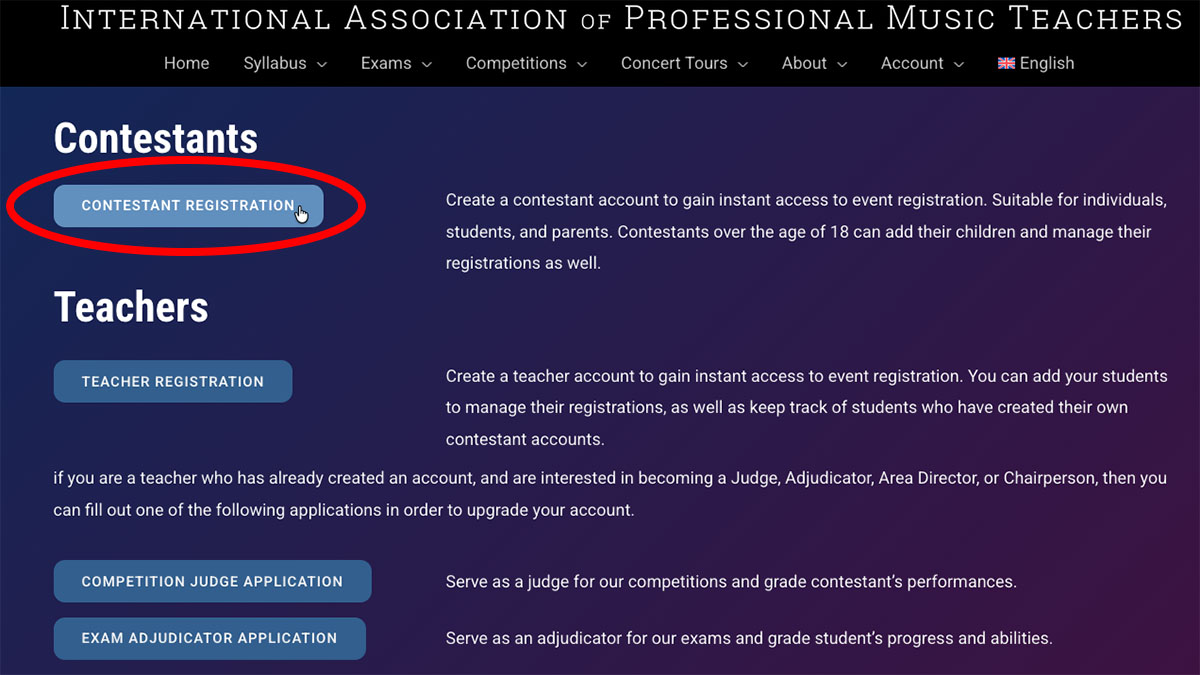
Create a contestant account on our website by visiting the Register Page.

Step 2:
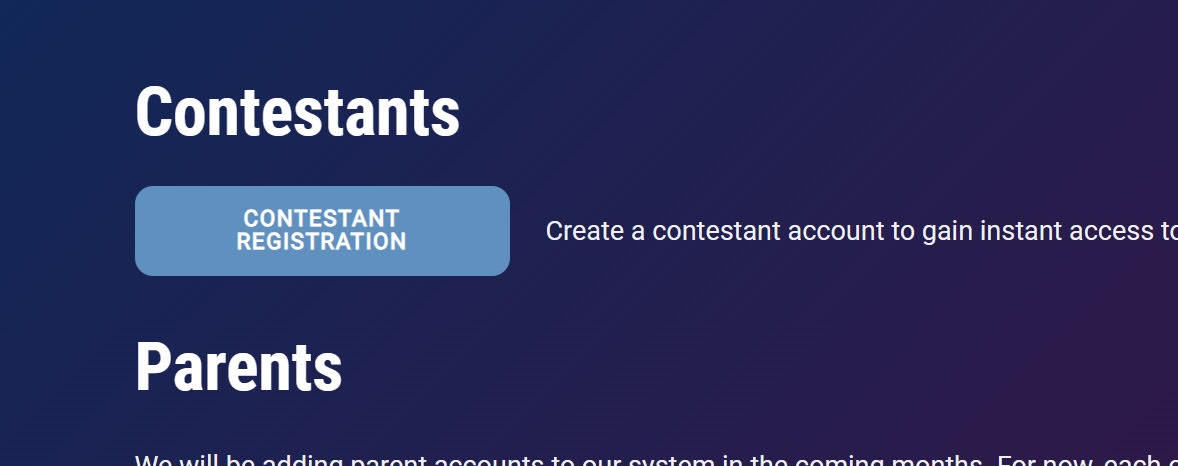
On the Register Page, choose Contestant Registration
Step 3:
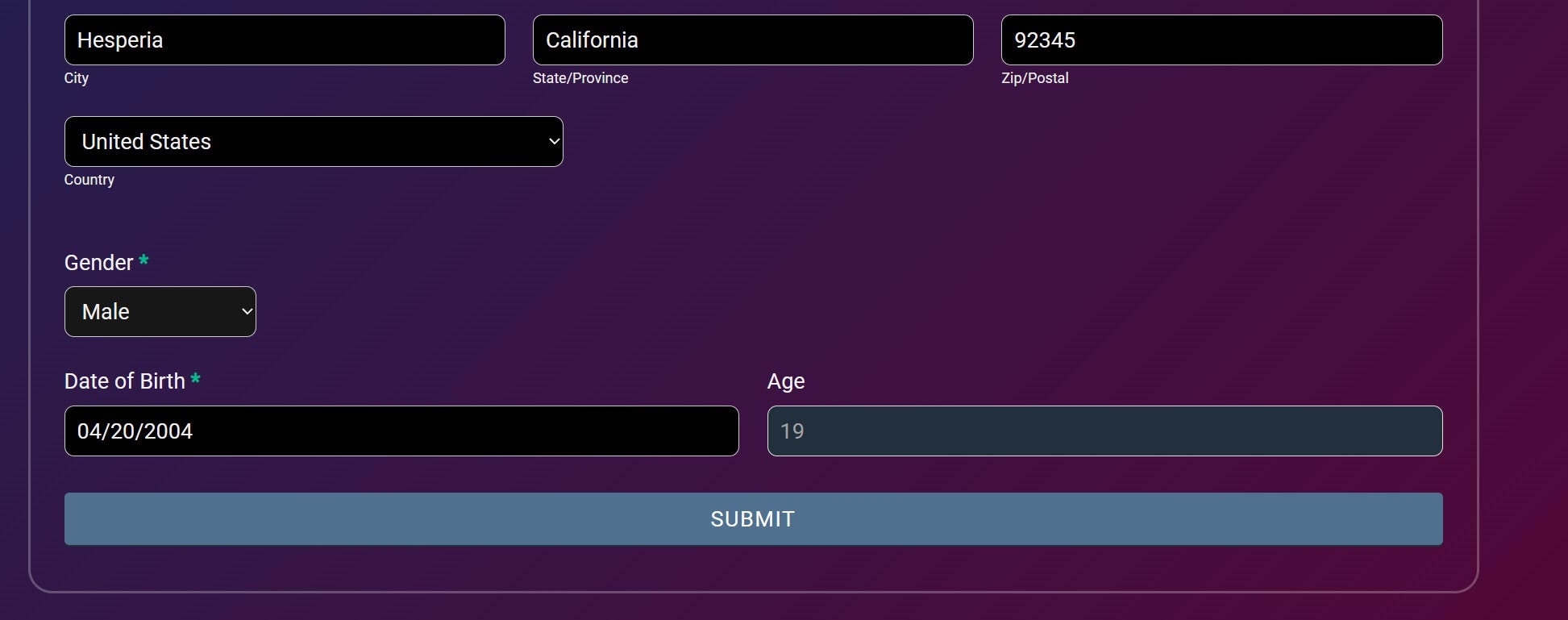
Fill in your personal information and click Submit
Step 4:
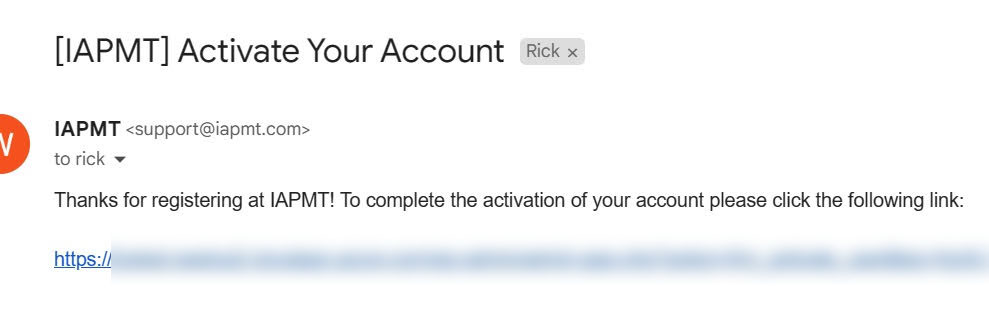
Once you are registered, the website will send you a confirmation email. Open the email and click the confirmation link.
Step 5:
Once your account has been verified, visit the website and sign in with your new account.

How do I register for a competition?
Step 1:
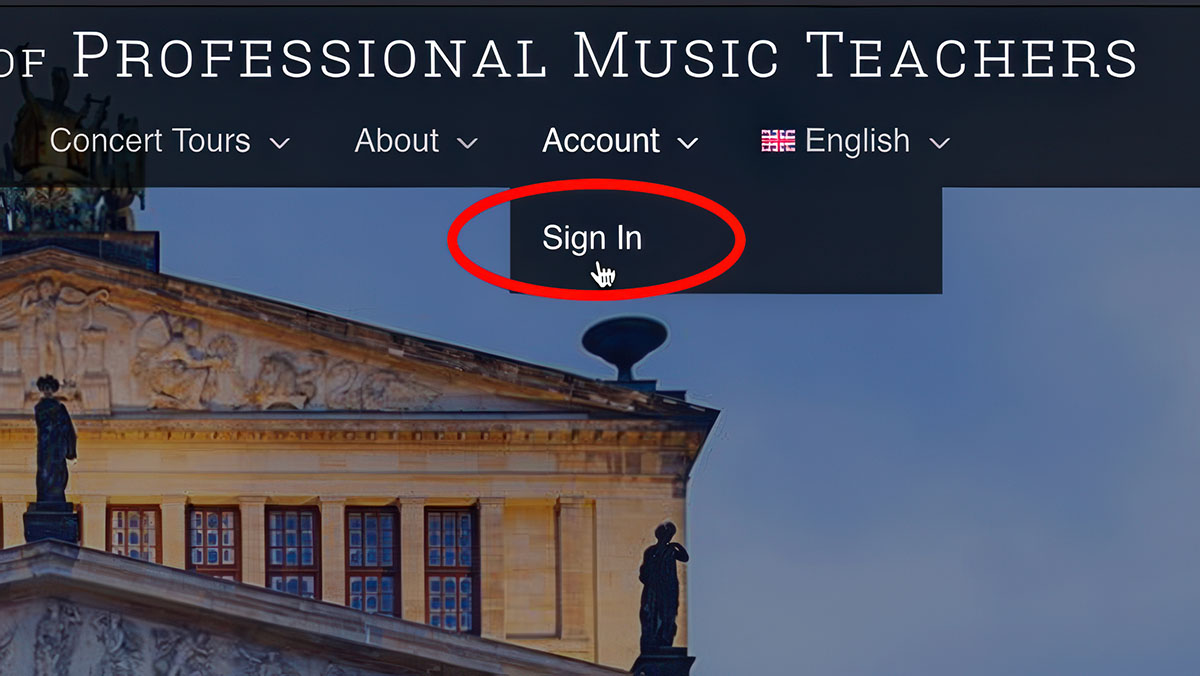
Sign into the website.
Step 2:
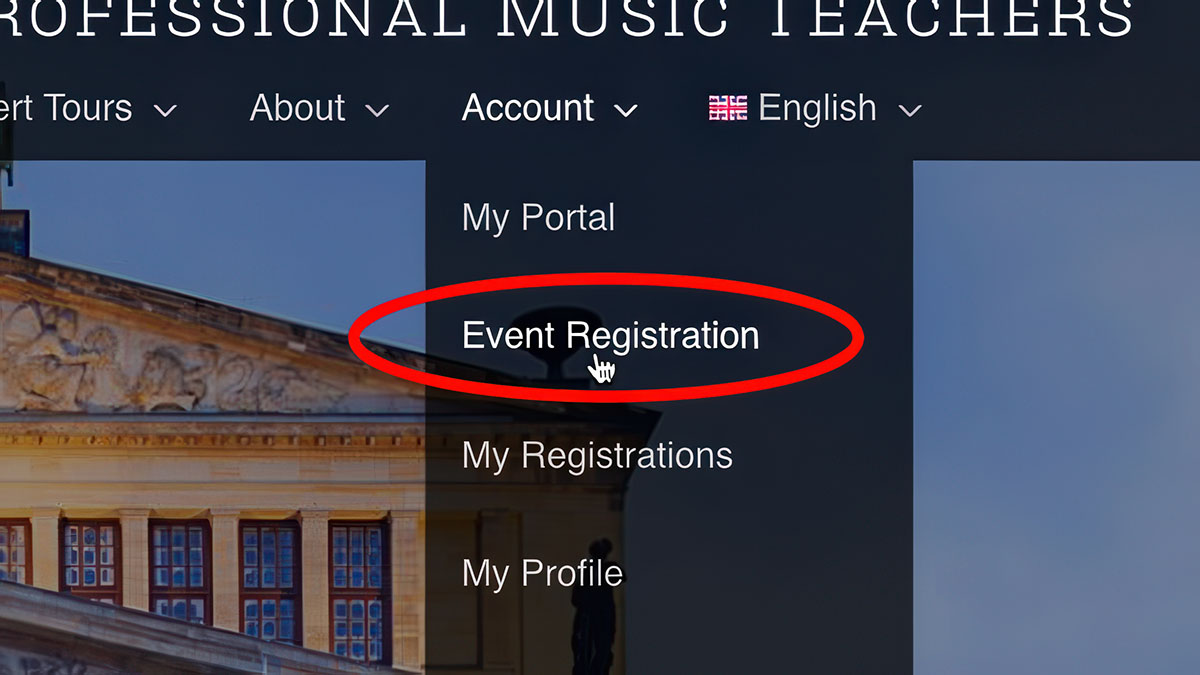
After you have signed in, visit Event Registration.
Step 3:
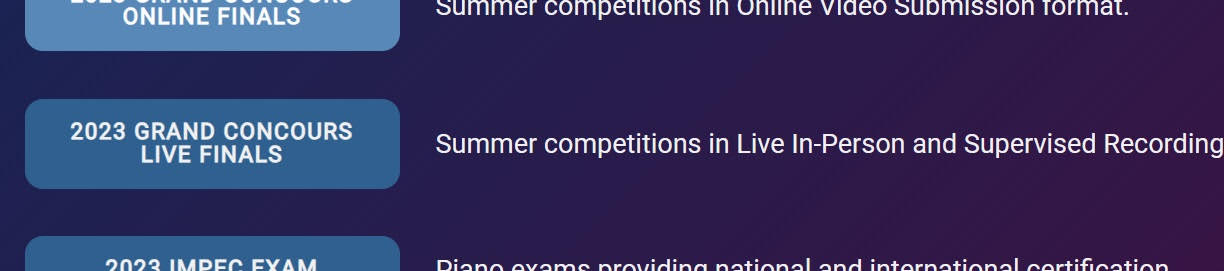
Choose the event you want to register for by clicking the button.
Step 4:
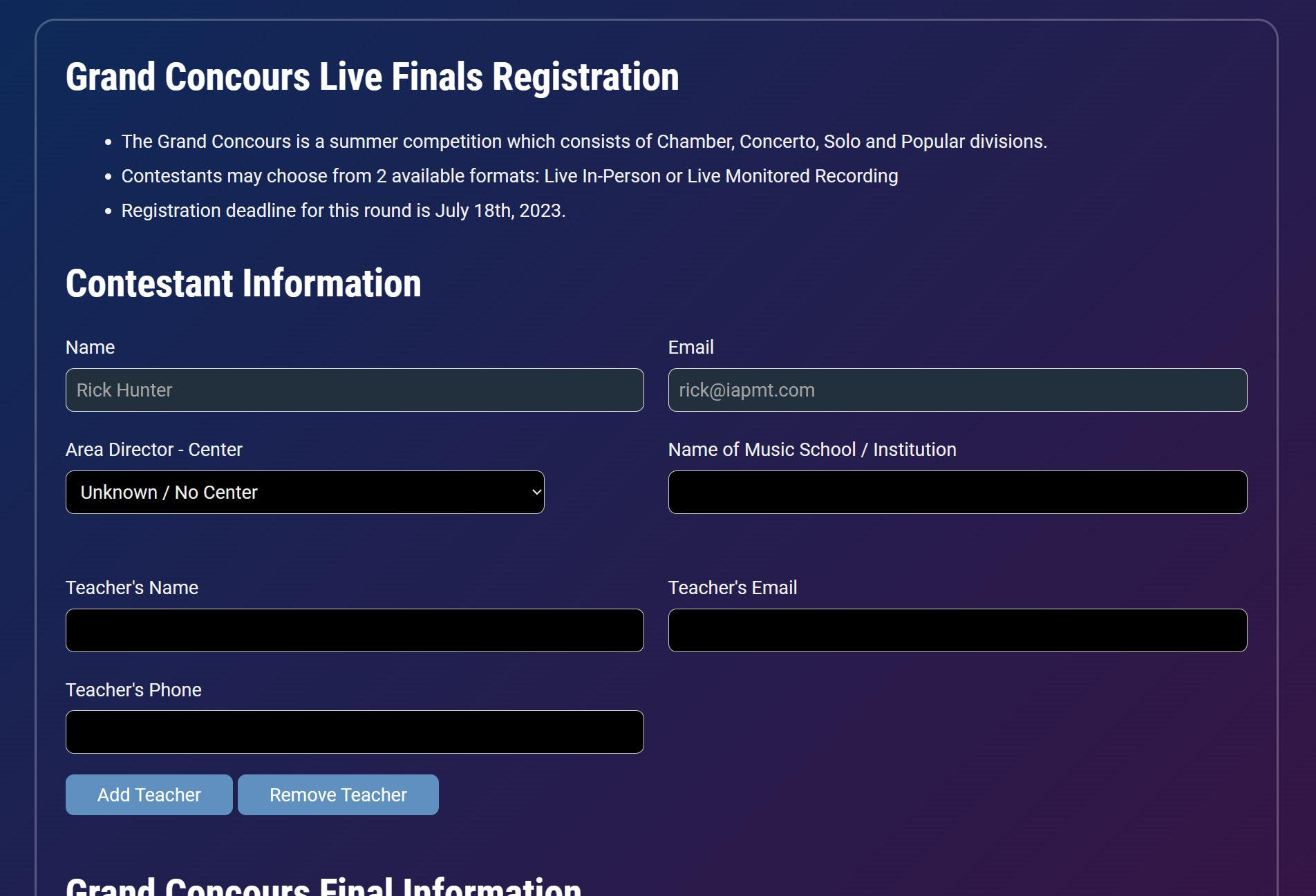
Enter your registration details and, if necessary, complete your payment.
How do I edit an existing registration?
Step 1:
Sign into the website.
Step 2:
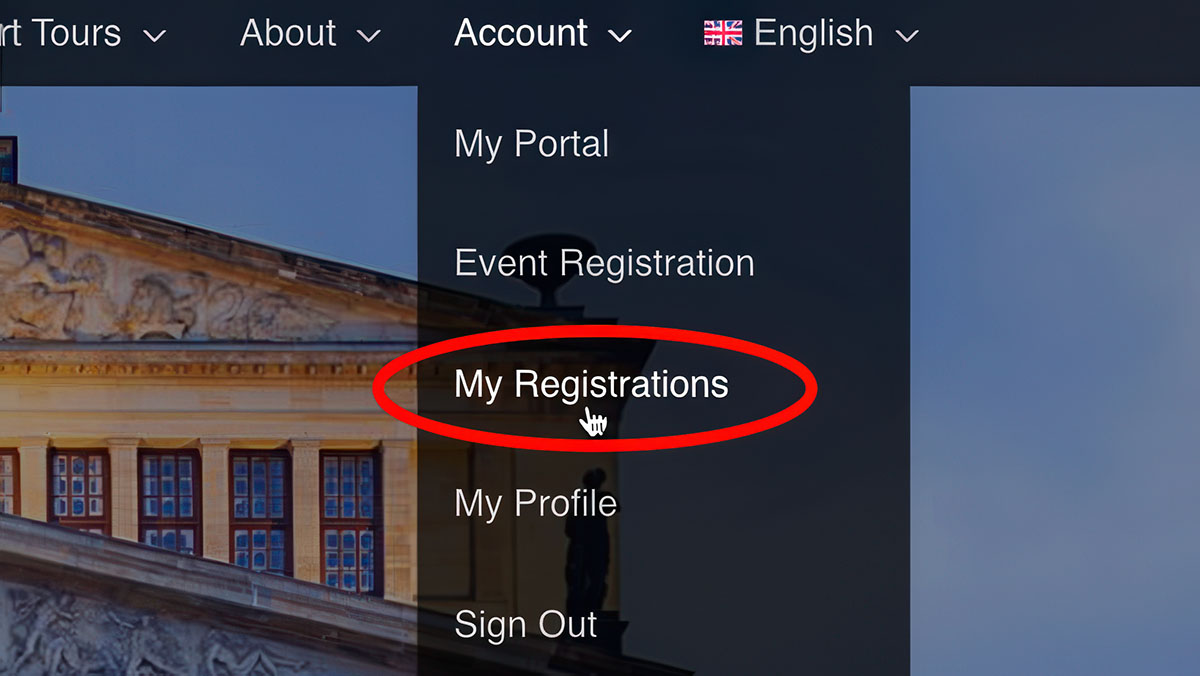
After you are signed in, visit My Registrations.
Step 3:
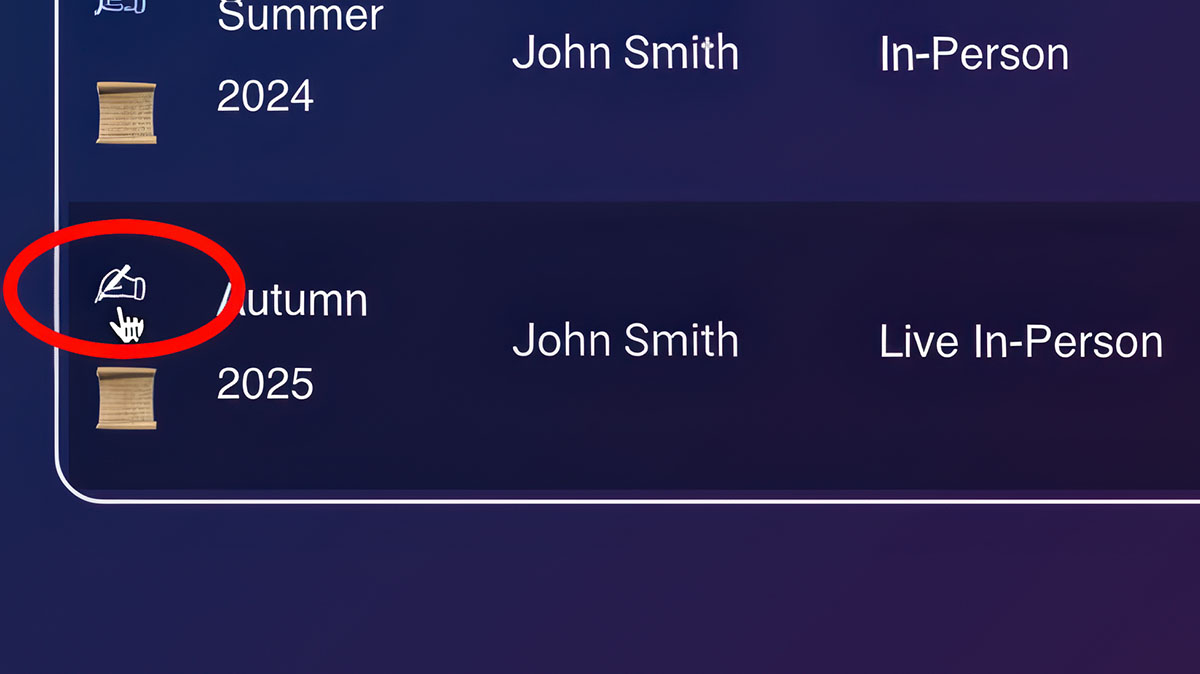
Locate the registration you wish to edit, and click the hand icon on the left hand side.
Step 4:
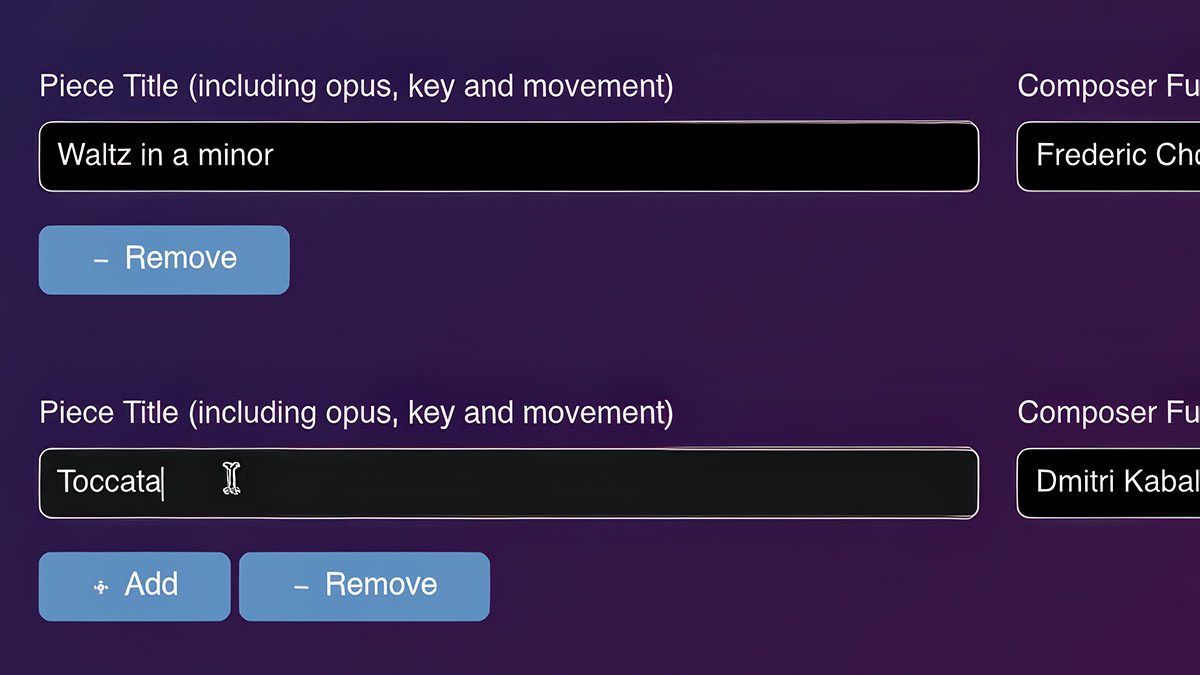
Make your desired changes to the registration. In this example, we are editing the repertoire.
Step 5:
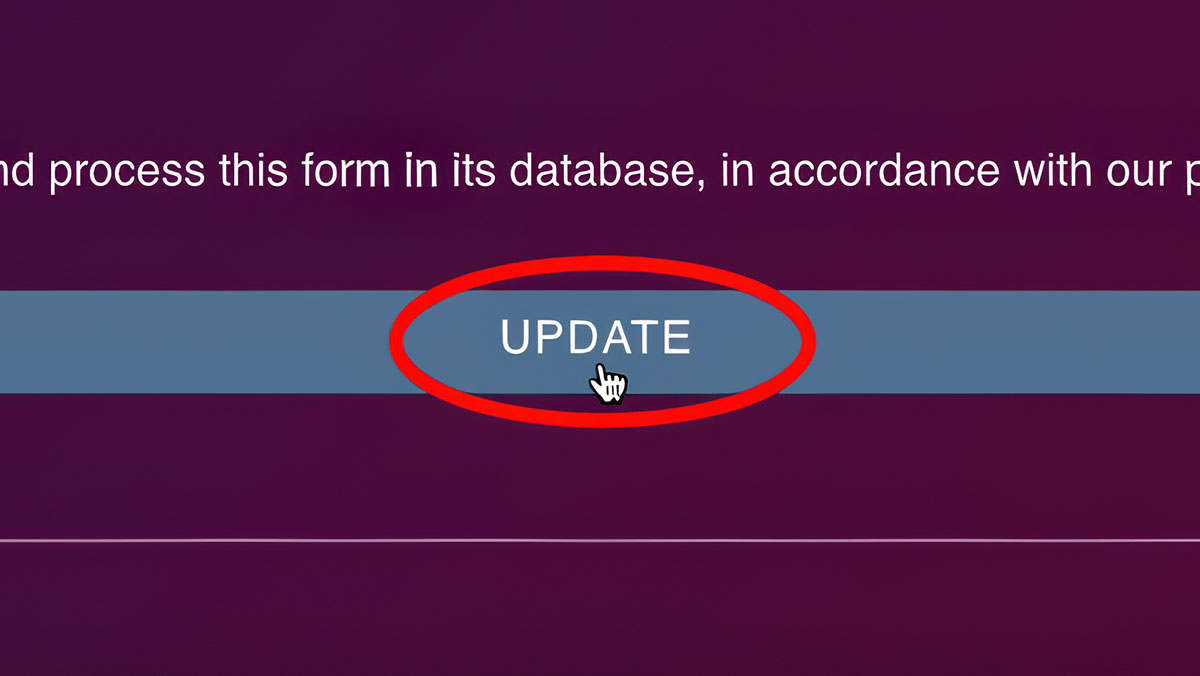
Once the changes have been made, click the Update button at the bottom of the registration.
- Once the registration deadline has passed, it will no longer be possible to make changes, so please make sure that all the required information is present before the registration deadline.
- Some fields cannot be changed by contestants, such as division and level. Please choose these carefully during the initial registration. If changes must be made, you can contact a supervisor at support@iapmt.com.
How do I view my reports and certificates?
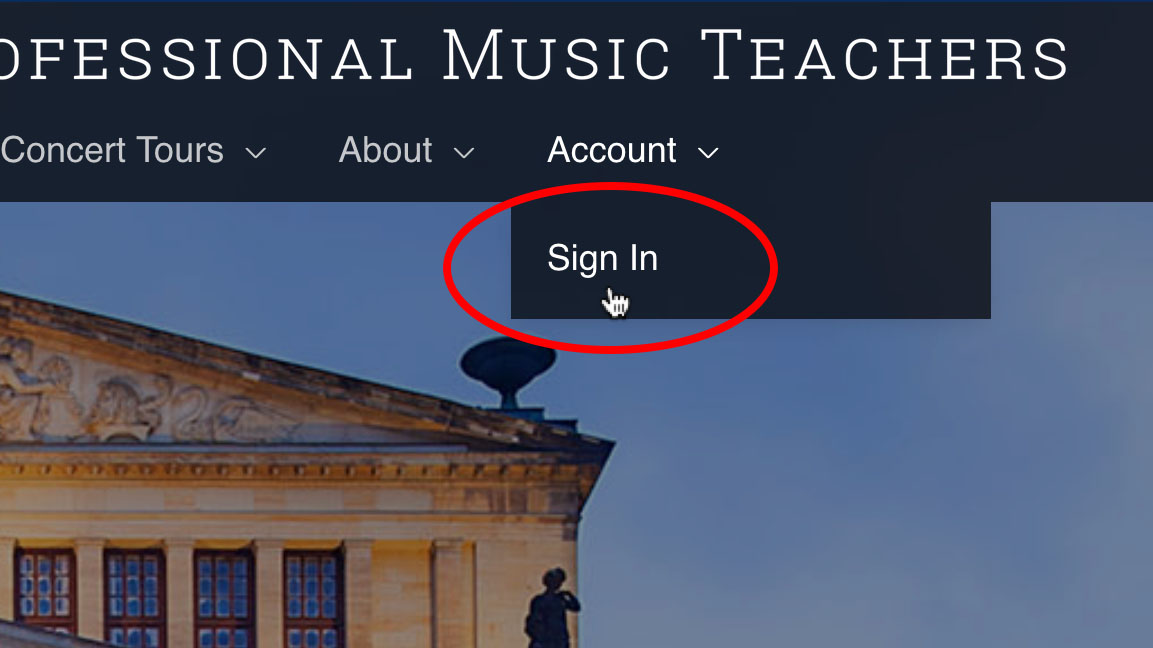
Sign into the website by clicking “Sign In” under the Account menu.
Once you are signed in, click on “My Registrations” under the Account menu.
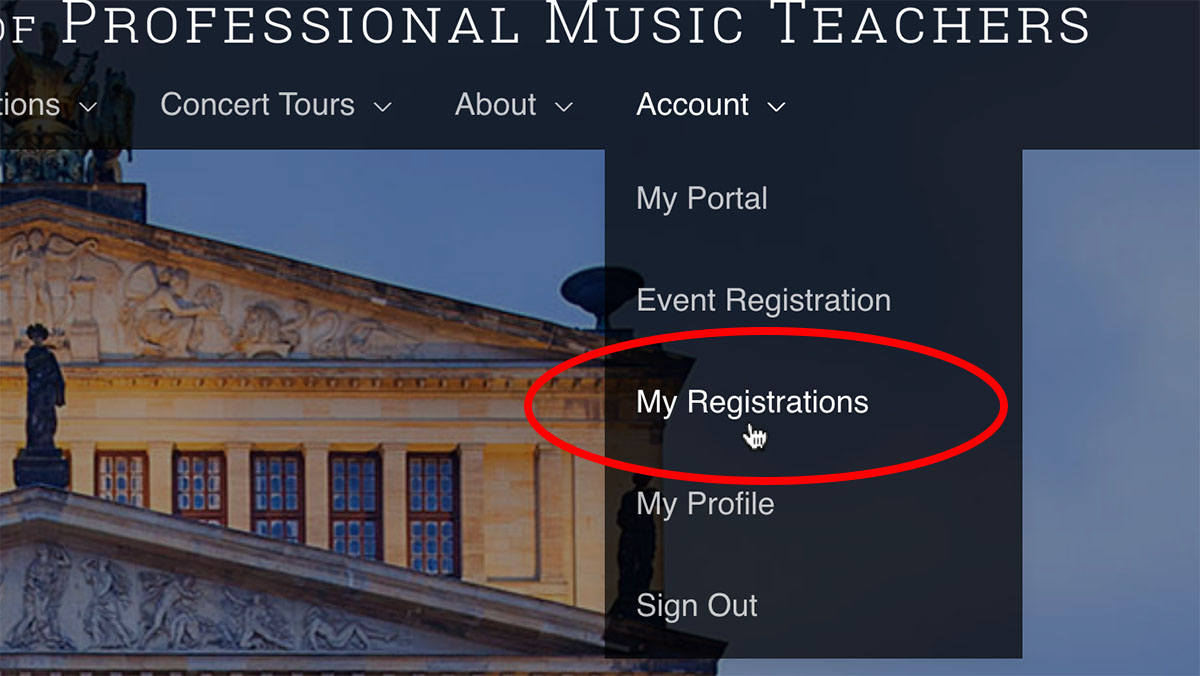
Scroll down to find the desired registration, then click the scroll icon on the left hand side.
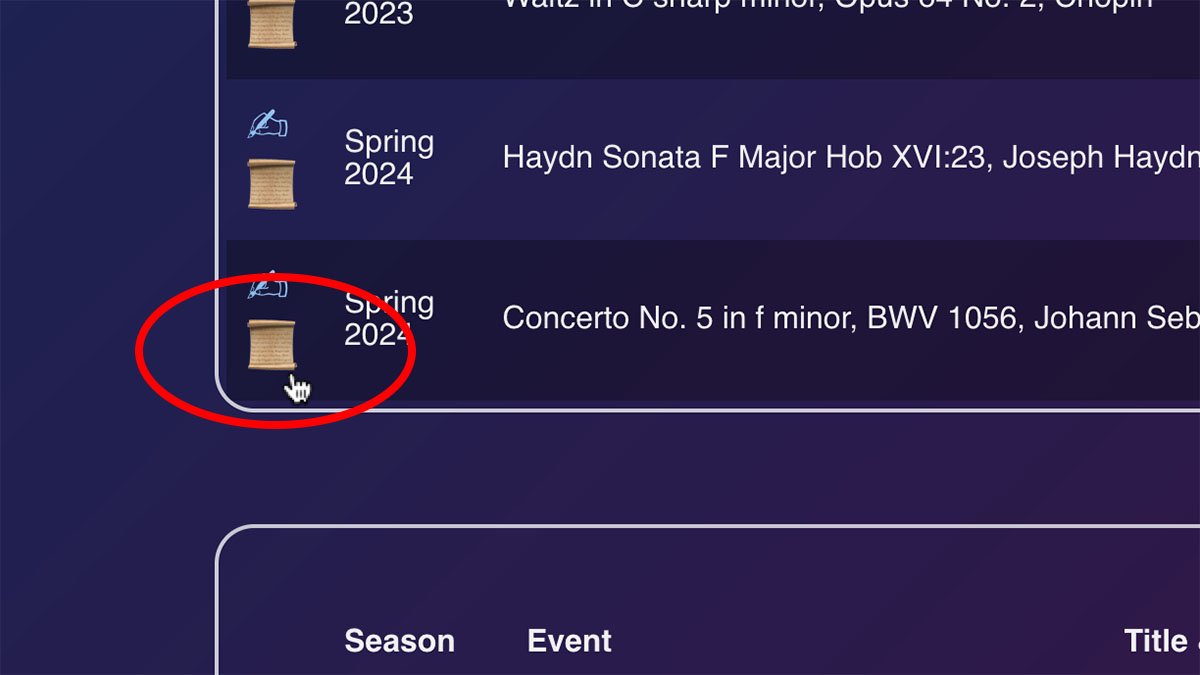
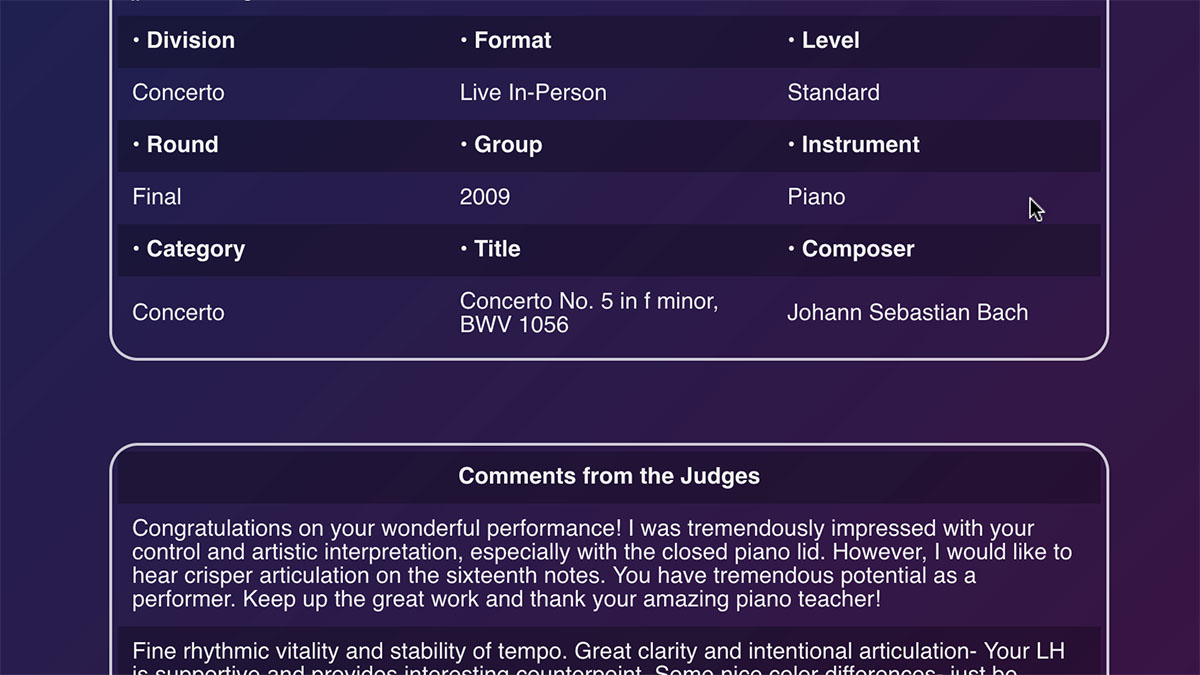
Scroll down in order to view your full report.
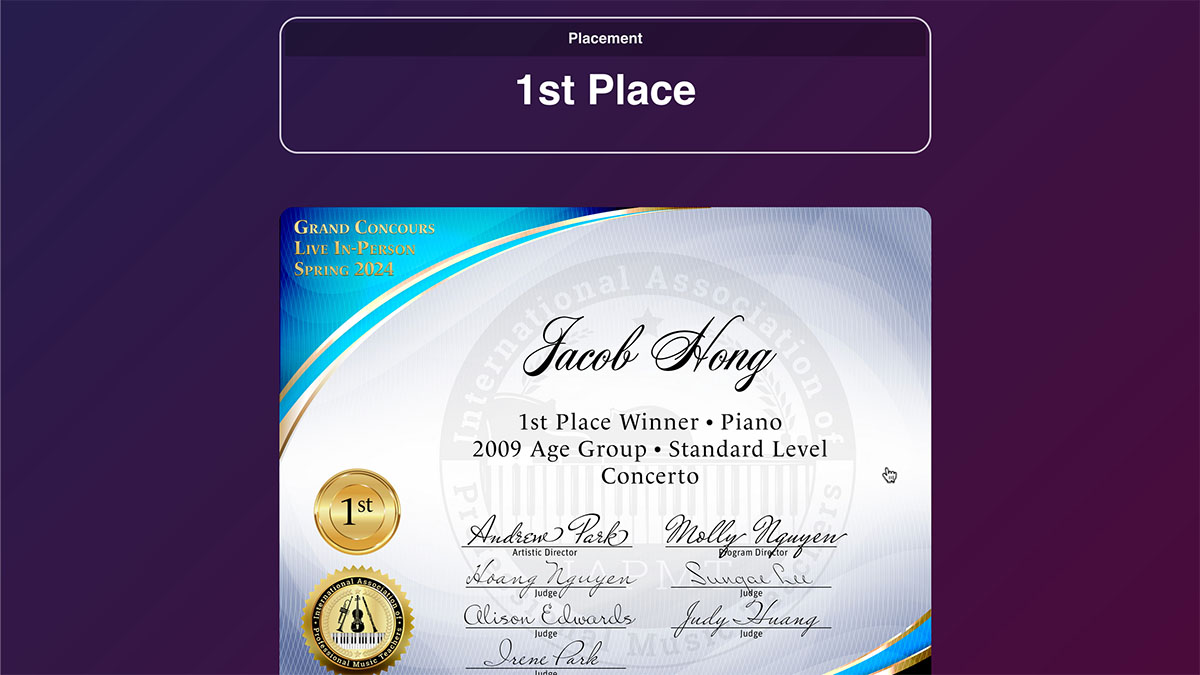
Keep scrolling down and you will see your certificate. You can click on the certificate to view a full size version, or right-click the certificate to save it to your computer.
How can I view my photos?
Sign into the website by clicking “Sign In” under the Account menu.
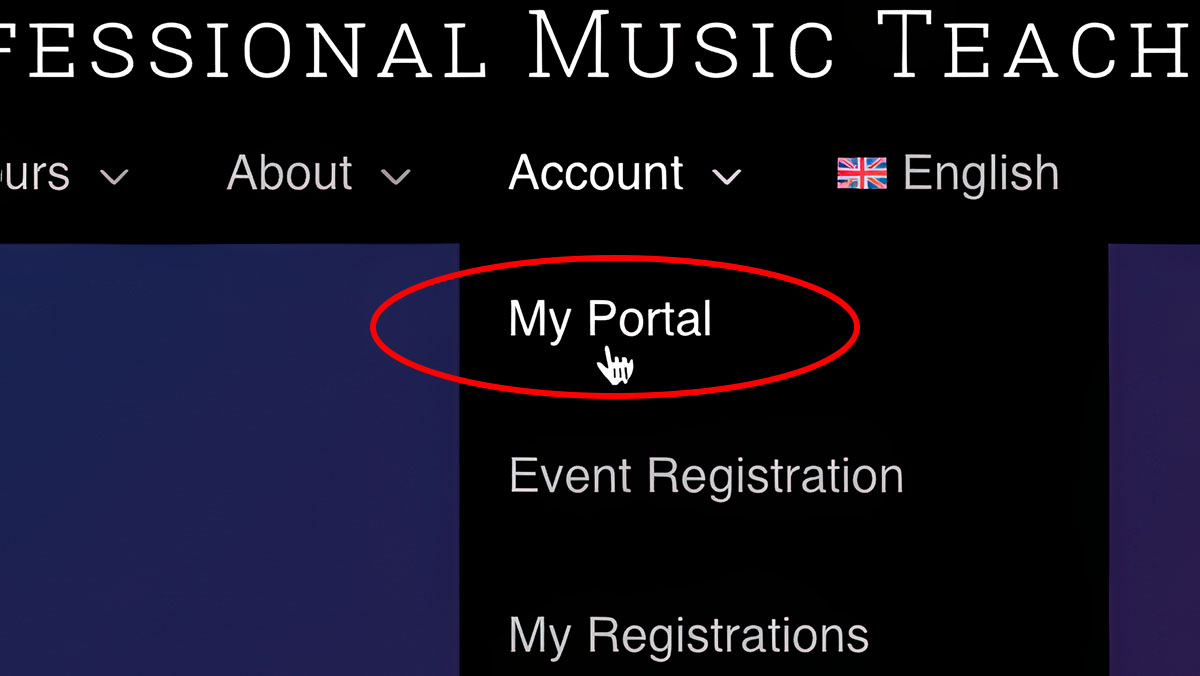
Once you are signed in, click on “My Portal” under the Account menu.
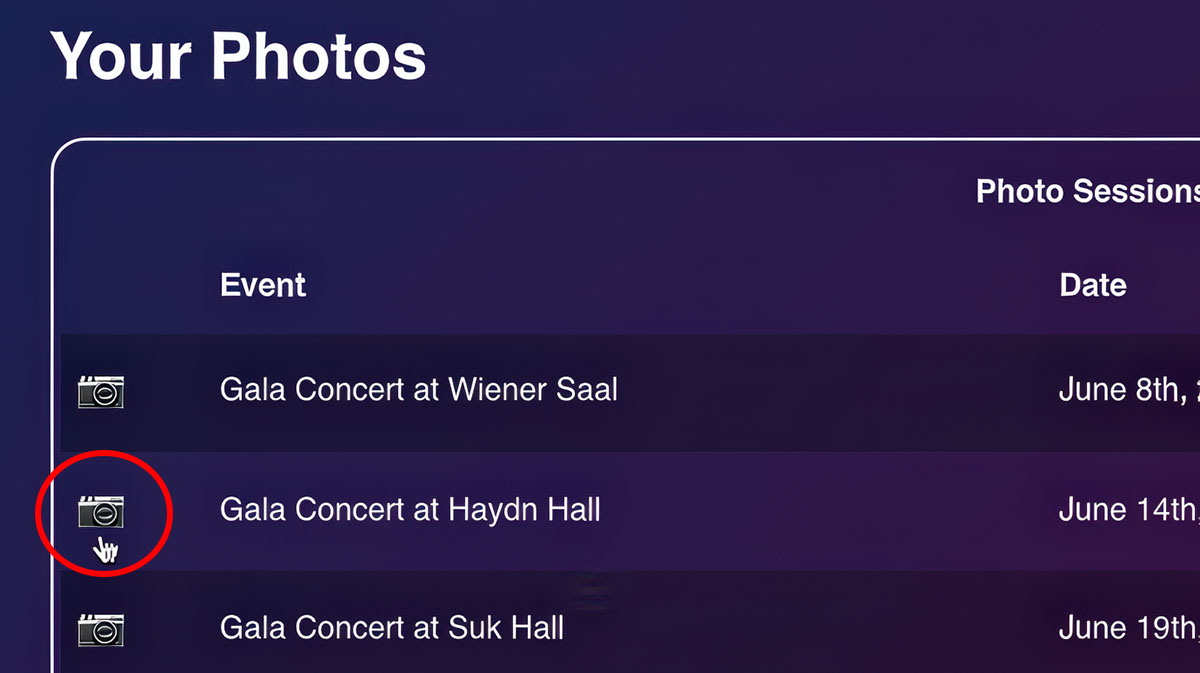
Scroll down to find your photo sessions, then click the camera icon on the left hand side.
How can I add my biography and profile picture?
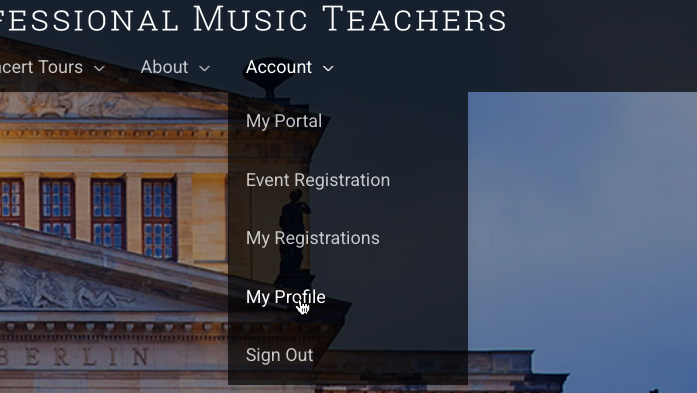
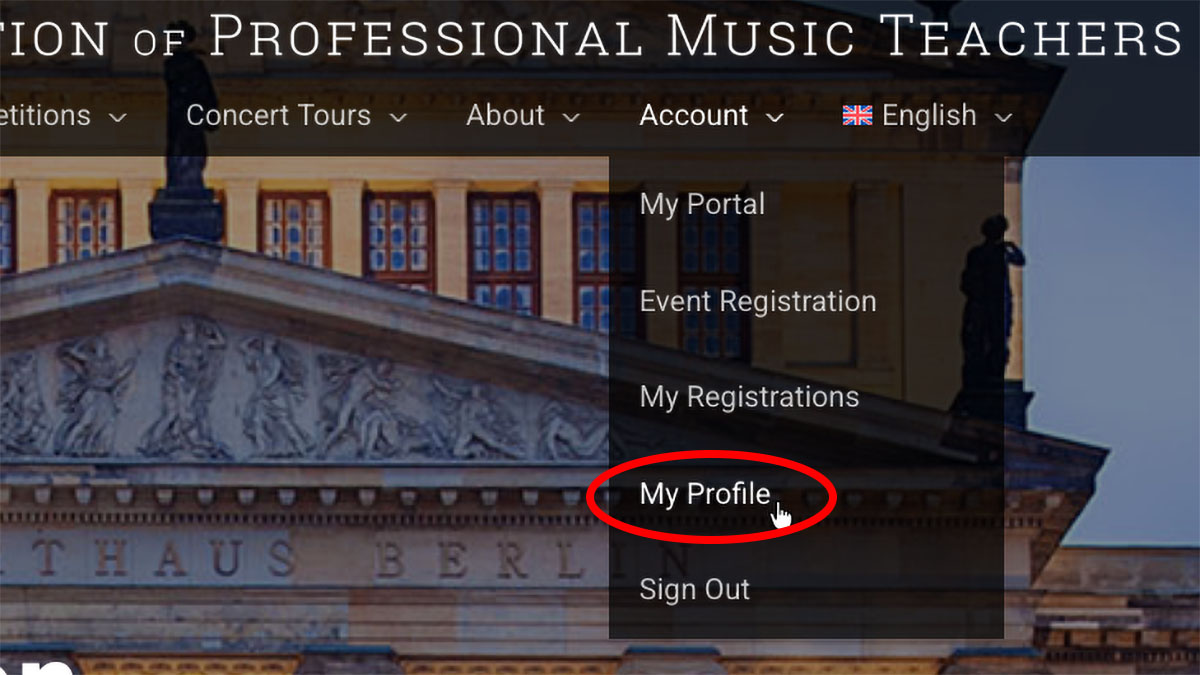
For contestants, sign into the website and visit “My Profile” located in the account menu.
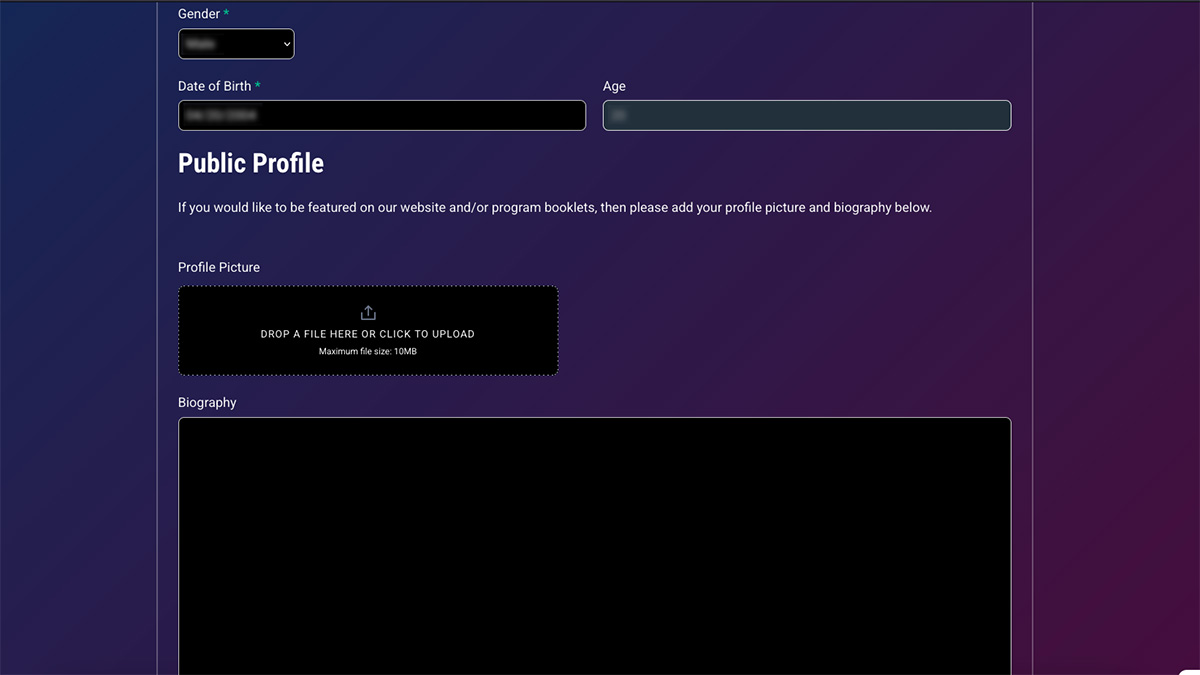
Simply scroll down to the “Public Profile” section, where you can upload a profile picture and add your biography.
The process is similar for Teachers and Staff members. After signing into the website, visit “My Profile” located in the account menu.

Under the “Public Profile” section, you can add your title, biography, a profile picture, as well as a cover photo.
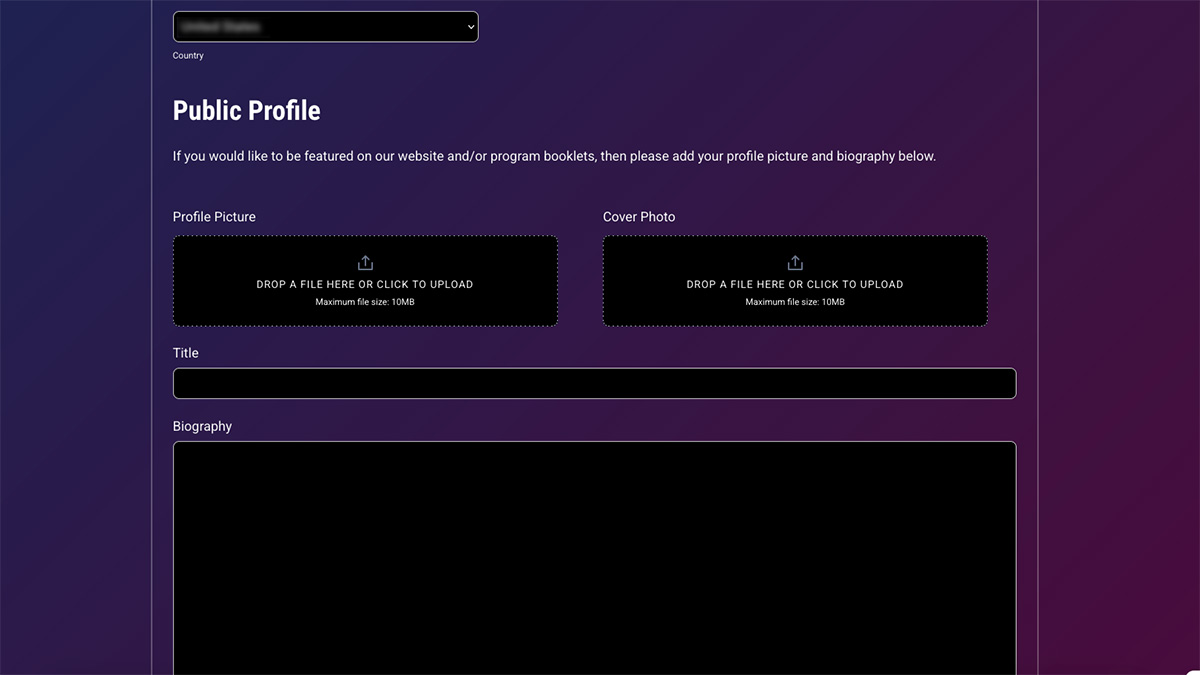
Contestants and Teachers who add their profile picture and biography will be featured on our website as well as our printed programs and posters. If you would prefer not to be featured, simply leave these fields blank.
How can I register for my children?
Step 1:
Parents who do not have an account yet will need to visit the Register page and create a contestant account.
Alternatively, if you already have an account, then simply sign in and visit “My Profile” in the Account menu.
Step 2:
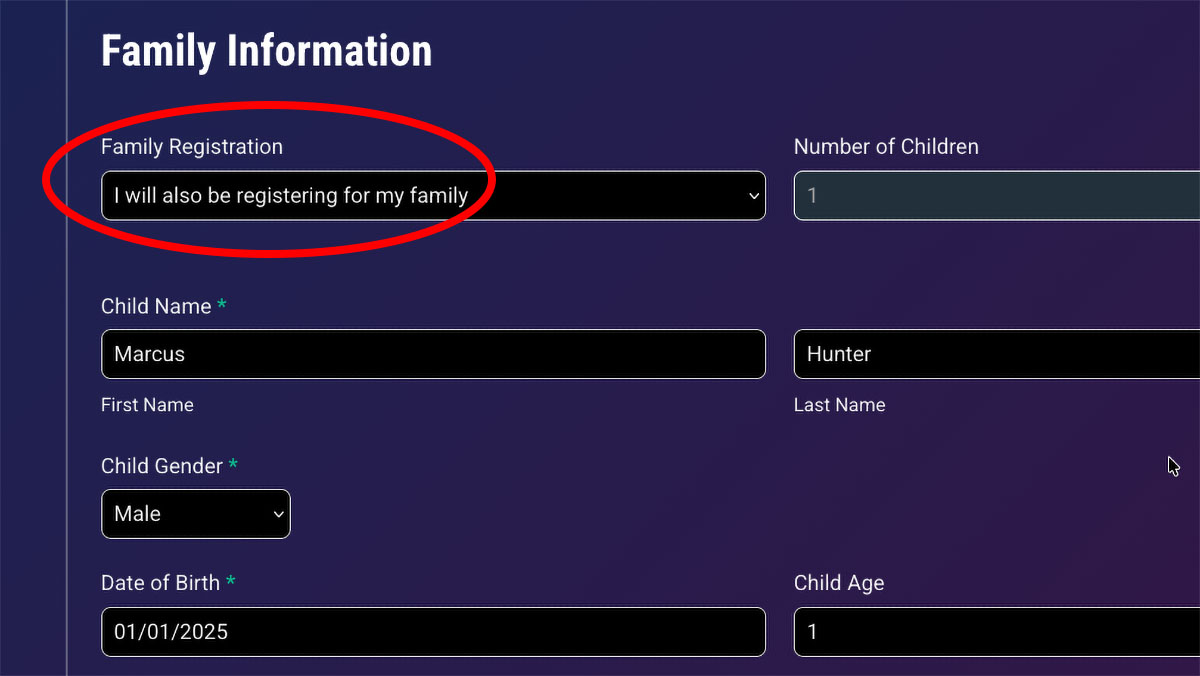
Scroll down to the “Family Information” section. In the “Family Registration” dropdown, select “I will also be registering for my family”. Enter your child’s information, including name, gender, and date of birth. Additional children can be added by clicking the “Add” button at the bottom of this section. Once you are finished, scroll to the bottom of the form and click the “Submit” or “Update” button to save your information.
Step 3:
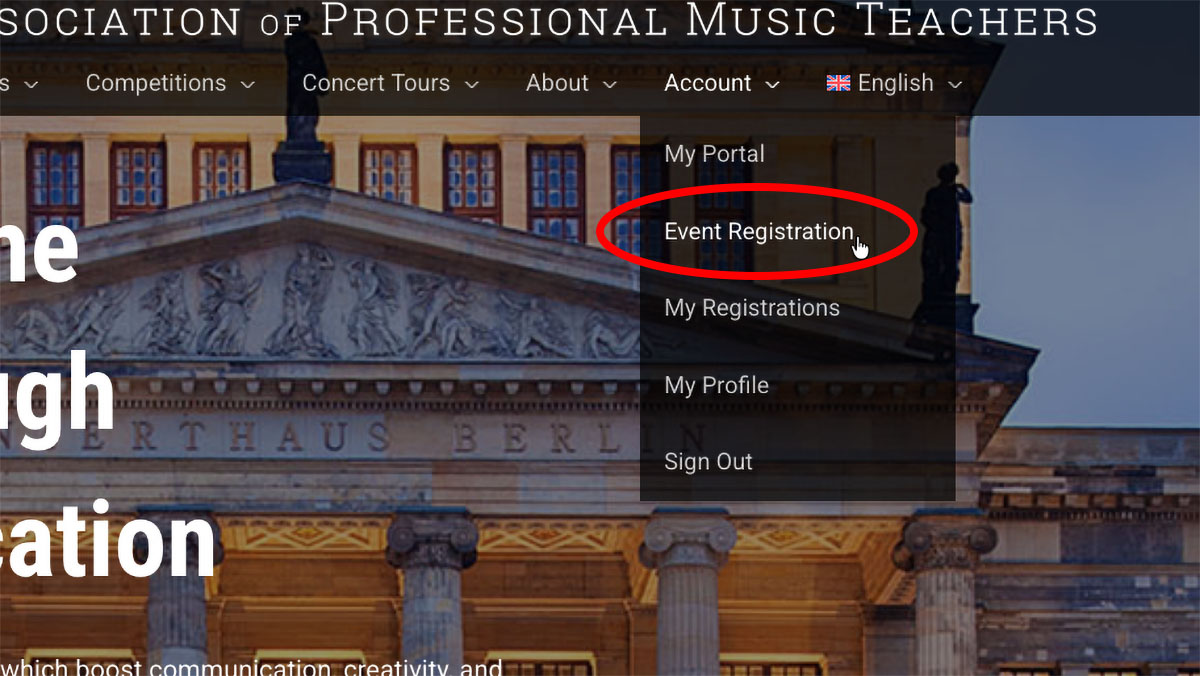
Now that you have added your child or children to your account, simply visit “Event Registration” in the Account menu.
Step 4:
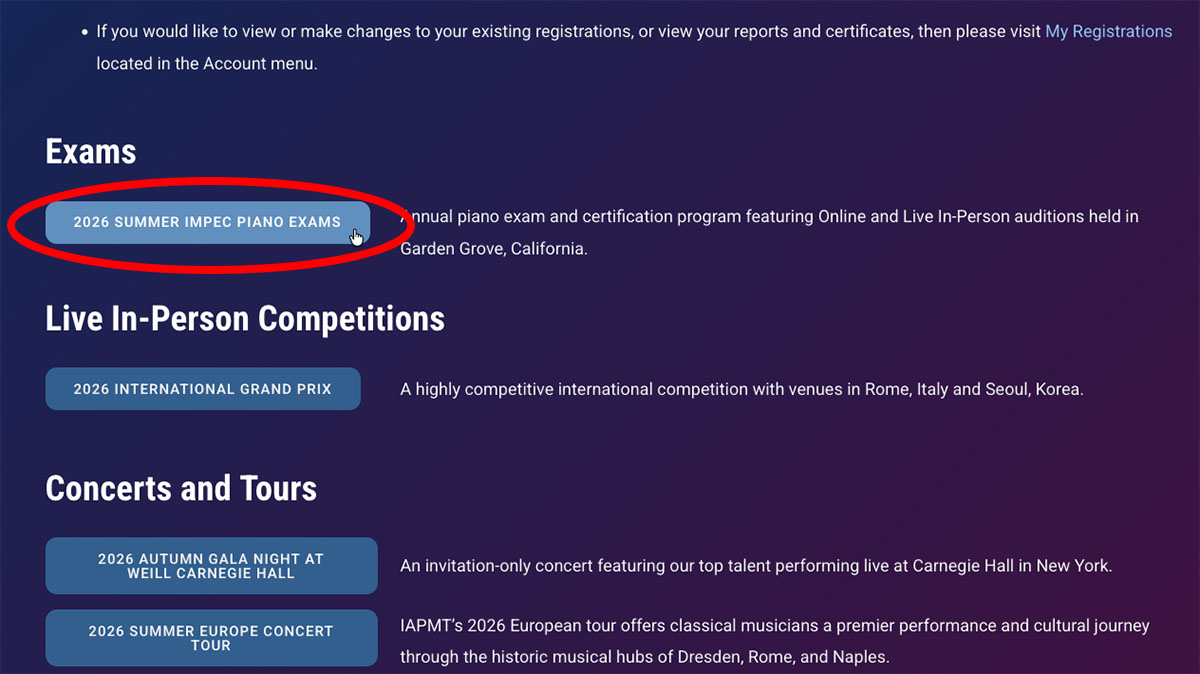
Click the button of the event you wish to register for.
Step 5:
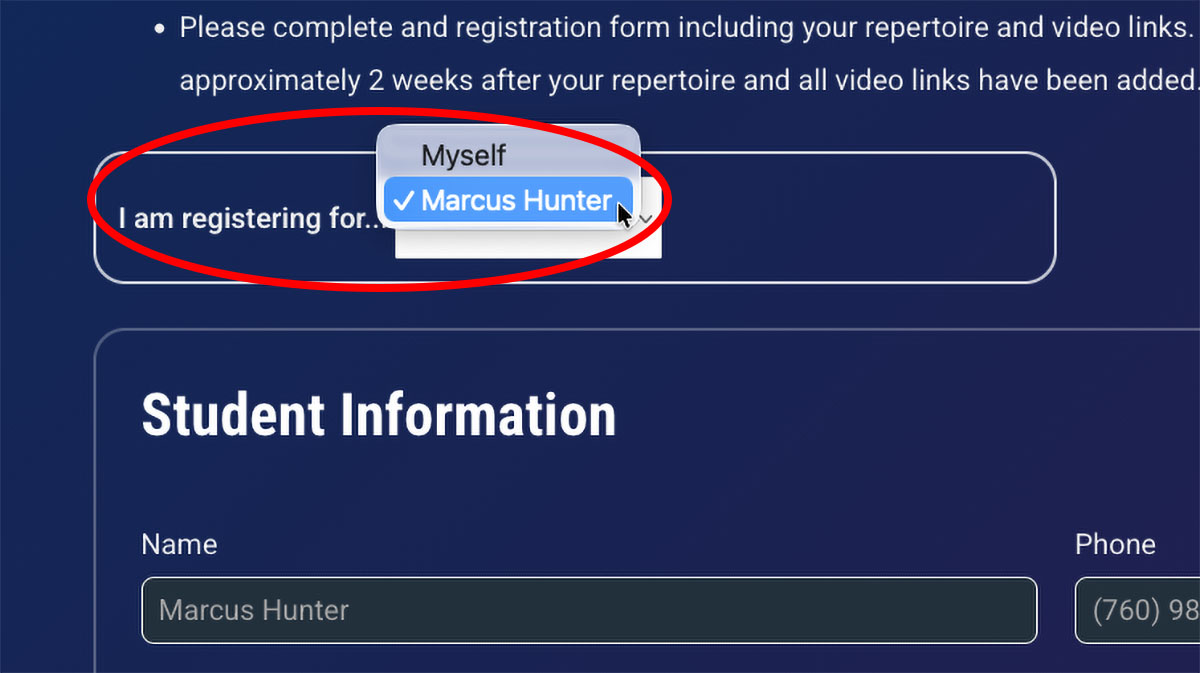
In the “I am registering for…” dropdown, select the person who you are registering for, and proceed to fill out the registration form.
- Each individual will be required to pay a one-time lifetime membership fee when registering for their first event.
- If you have already created separate accounts for your children under multiple emails, and would like to consolidate them under a single parent account, then please contact support@iapmt.com. We will be happy to assist you in taking care of this.
How can I register for my students?
Step 1:
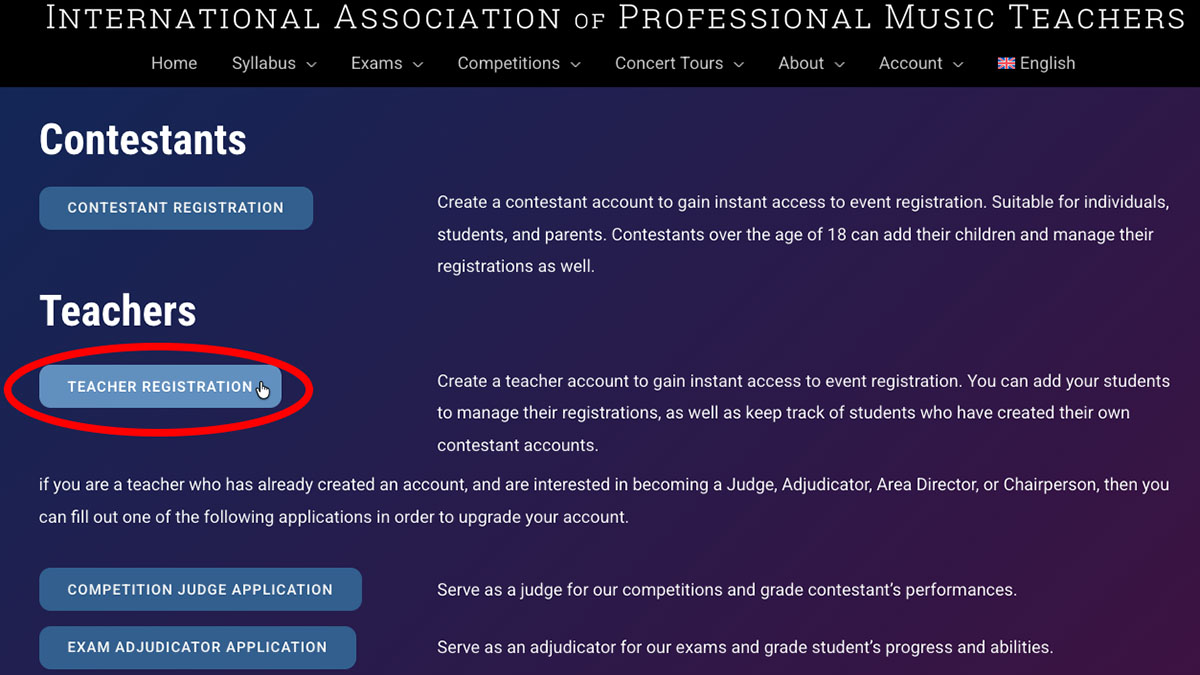
Teachers who do not have an account yet will need to visit the Register page and create a teacher account.
Alternatively, if you already have an account, then simply sign in and visit “My Profile” in the Account menu.
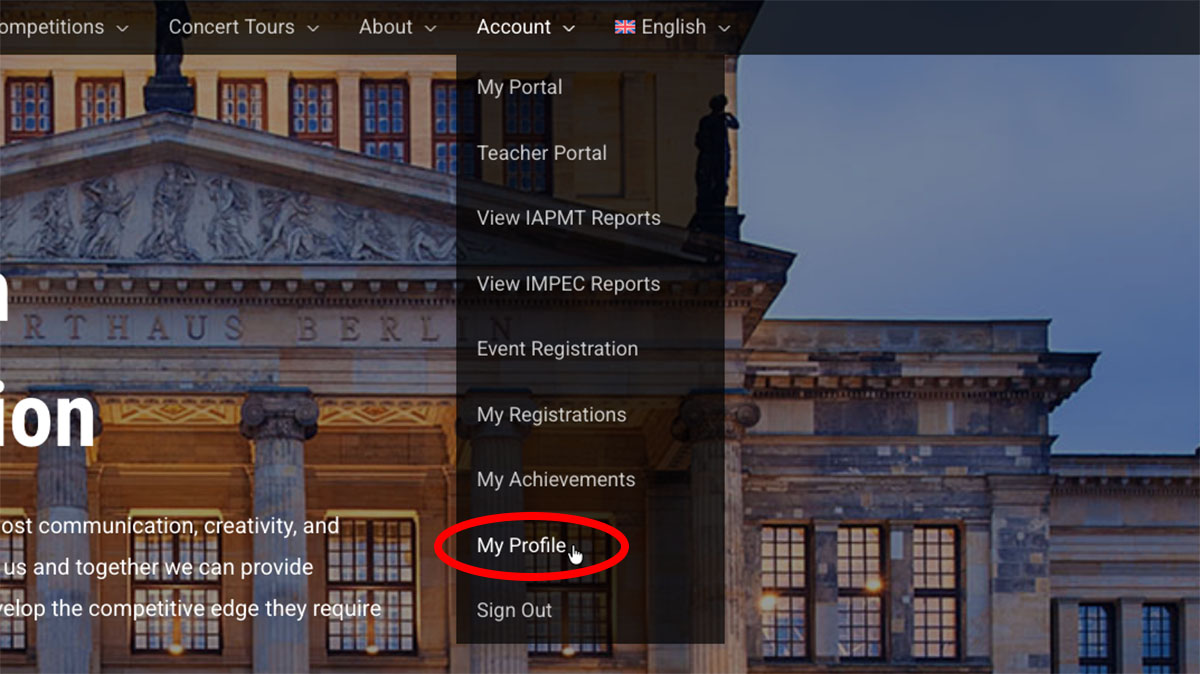
Step 2:
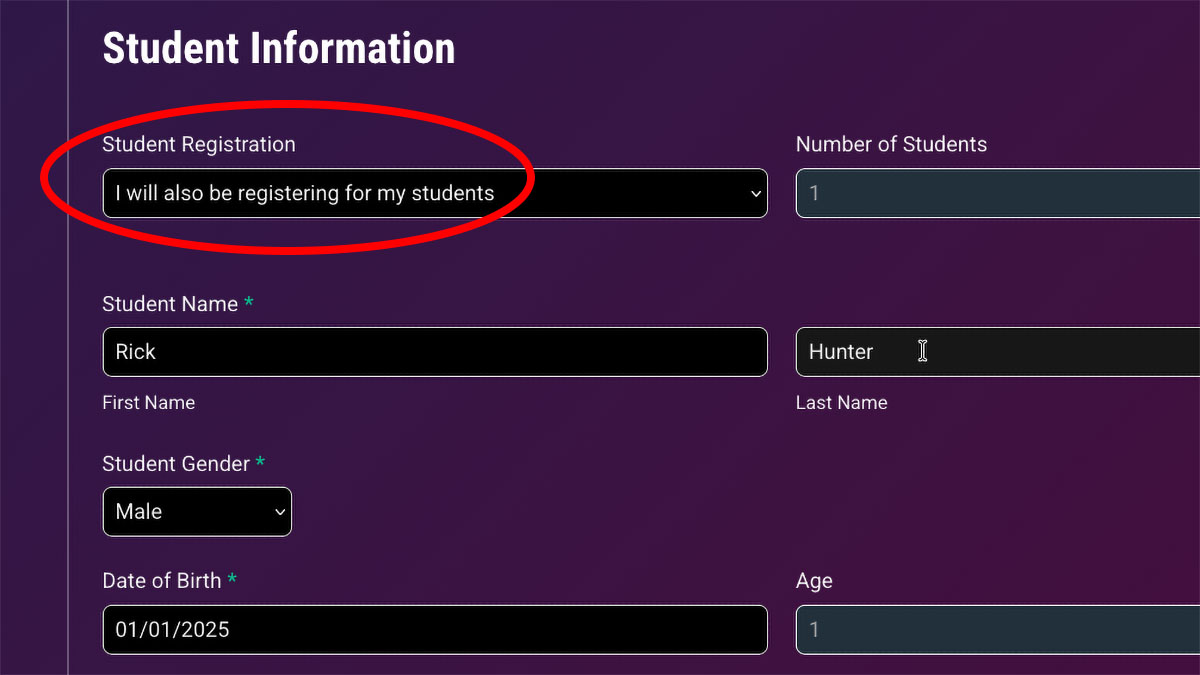
Scroll down to the “Student Information” section. In the “Student Registration” dropdown, select “I will also be registering for my students”. Enter your student’s information, including name, gender, and date of birth. Additional students can be added by clicking the “Add” button at the bottom of this section. Once you are finished, scroll to the bottom of the form and click the “Submit” or “Update” button to save your information.
Step 3:
Now that you have added your student or students to your account, simply visit “Event Registration” in the Account menu.
Step 4:
Click the button of the event you wish to register for.
Step 5:
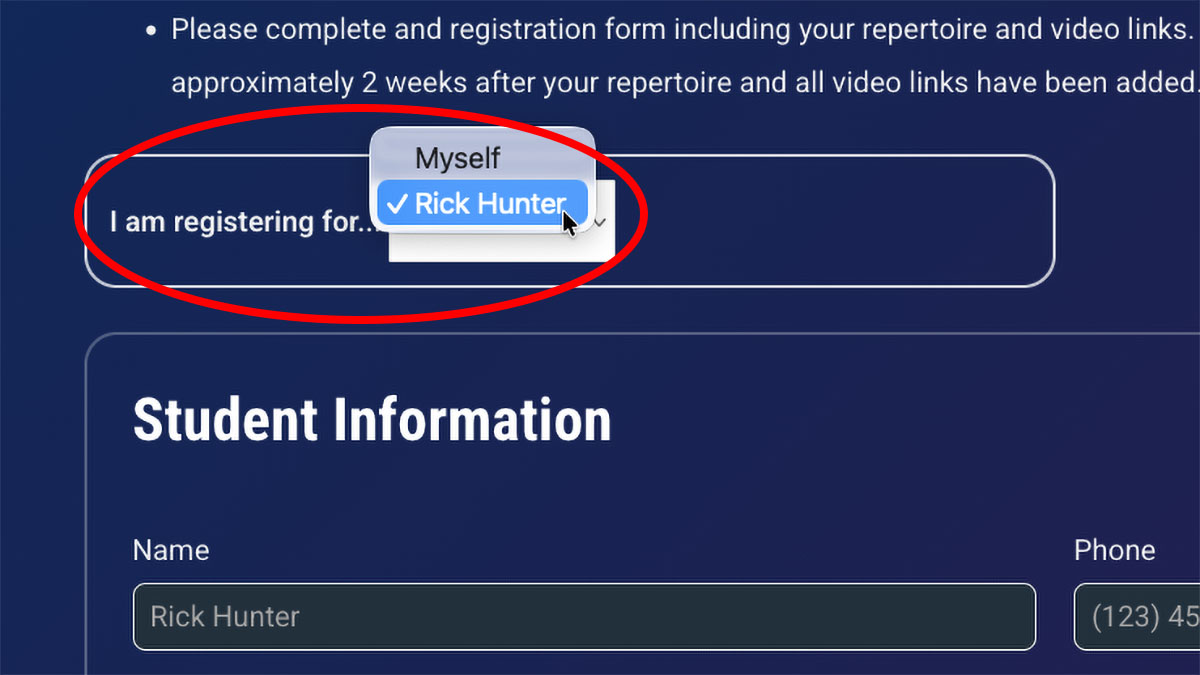
In the “I am registering for…” dropdown, select the person who you are registering for, and proceed to fill out the registration form.
- Each individual will be required to pay a one-time lifetime membership fee when registering for their first event.
- If your students have already created separate accounts under multiple emails, and would like to consolidate them under a single teacher account, then please contact support@iapmt.com. We will be happy to assist you in taking care of this.


